Vendor Types
This page is where you define the types of vendors you are working with. This could be things such as:
- Dealerships
- Detailing services
- Gas stations
- Convenience stores
- Glass repair services
- Mechanics or repair shops
- Oil change services
- Parts Suppliers

If you can remember the old days, there was this book called "The Yellow Pages". In the Yellow Pages, business were categorized by the type of business they are. This vendor type section defines the same functionality, and is used when you create a vendor.
By default, you have a vendor already defined, called Self, but it is not shown in these screens. Later, when you are adding entries for fuel, maintenance, repairs, or purchases, the Vendor selection option defaults to Self.
Usage
Adding a Vendor Type
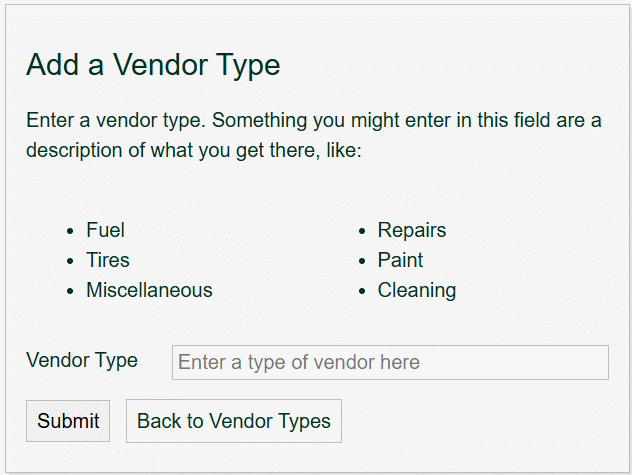
To add a new vendor type, click the Add Vendor Type button under the Vendor Types header.
In the resultant form, enter a short description of this vendor. You can use the examples above, or come up with your own.
Finally, click the Submit button to save the vendor type. After clicking the Submit button, the form will clear, ready for you to enter another type.
To go back to the Vendor Types screen, click the button labelled Back to Vendor Types.
Editing a Vendor Type
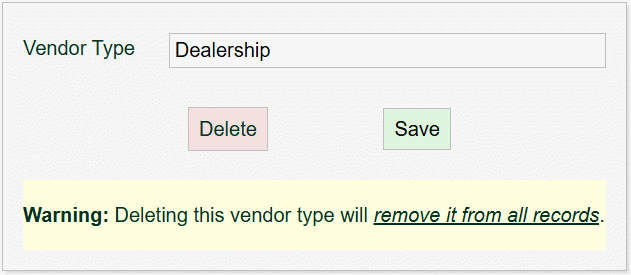
To edit a Vendor Type, simply click the vendor type link on the left of the screen. The vendor type will be displayed so you can edit it to your liking.
To save your changes, click the Save button. Your updates will be saved, and you will be returned to the Vendor Types screen.
Deleting a Vendor Type
When editing a Vendor Type, you can also delete it by clicking the Delete button. Be careful about this! When you click the delete button, the entry is removed from the Vendor types screen, as well as reset to Self in all associated contexts.